Sound
Turn project sound on and off, tune the sounds that come with presets, add music tracks, use a video's own sound and export it all to MP4.
Sound in a project comes from three places: sounds attached to animation layers, audio tracks on the timeline, and the sound of a video. All of it plays in the preview and goes into the exported video.
Turn project sound on and off
The speaker button on the right of the timeline header (tooltip Sound on or Sound off) turns all sound in the project on and off. Volume next to it sets the overall level from 0 to 1. A new project starts with sound on at 0.8.
When sound is off, Volume stays visible but greyed out. The switch is saved with the project: if sound is off, the exported file is silent too.
Sounds that come with presets
When you apply an entrance, an exit or a one-off accent preset, its layers get a matching sound. Fades get no sound. Looping layers, such as waves and pulses, cannot have one at all.
Each layer that can have a sound shows a Sound row at the bottom of its card in the Animators section, with the sound's name or No sound. The play button on the left (tooltip Play sound) plays it the way it will sound in the video. Click the row to open its settings:
- Voice offers a few sounds picked for this preset; the first is the default. None turns the layer's sound off.
- Fit: Start plays the sound at the start of the movement, End at the end, and Fill stretches it over the whole movement. Clicks, hits and other fixed-length sounds cannot stretch, so Fill is greyed out with the tooltip
This sound has a fixed length. - Repeat appears when the sound can play more than once: Once, or once per letter of a cascade. The label follows the cascade, so it can read Each letter, Each word, Each line or Each element. Each copy appears on objects with a repeater.
- Volume (0 to 2, starts at 0.5), Pitch (in semitones, −12 to +12) and Offset, s, which moves the sound earlier or later.
- Crop before layer start, for recorded sounds, cuts any part that would start before the layer.
- Across cascade appears when the sound repeats. Volume to and Pitch to set the last sound against the first, and Curve sets how the change runs between them.
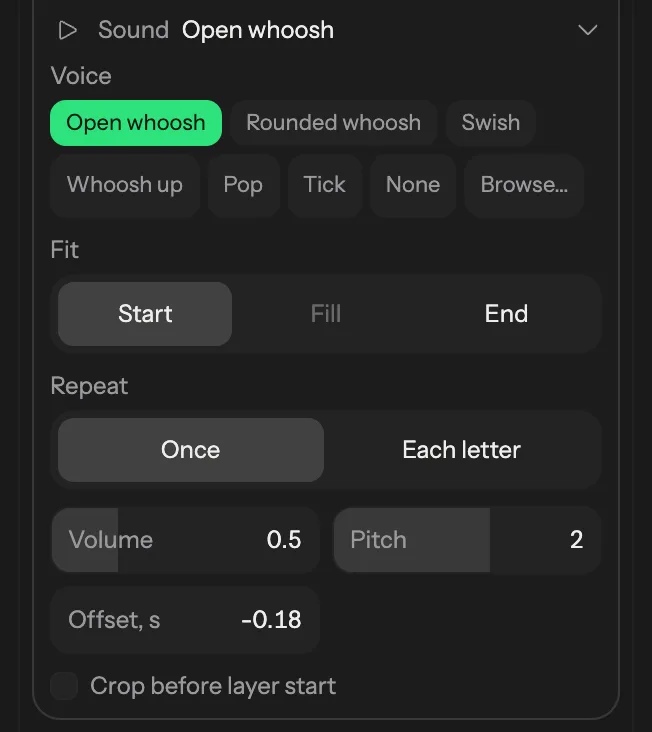
These settings show only while the layer has a sound. To give a sound back to a layer on None, pick a voice.
Browse… opens every sound in one panel: Search sounds…, category chips with counts (including Synth for generated sounds) and a grid of cards. Rest the pointer on a card, or reach it with Tab, and it plays after a short pause. Click a card to pick it.
A preset you save keeps each layer's sound. See Save your own preset.
Sounds on the timeline
A layer with a sound has a small ♪ button next to its strip on the timeline (tooltip Show sound). Click it to show a sound row under the layer, with a strip and a waveform for each time the sound plays.
- Drag the sound strip to move the sound in time. This changes Offset, s in the card.
- Double-click the sound strip, or click the sound row on the left, to open the layer's Sound settings.
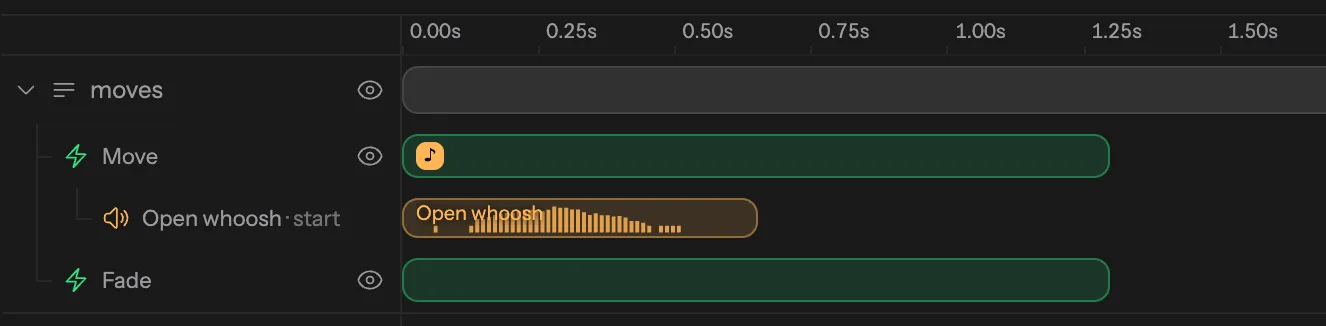
A layer with no sound shows nothing here. You add a sound from its card.
Music and audio tracks
The Audio section sits at the bottom of the timeline. + Add audio in its header opens a panel with 12 built-in tracks in six categories: Ambient, Rhythmic, Tech, Glitch, Retro and Cinematic. Rest the pointer on a card or use its play button to listen, then click the card to add the track.
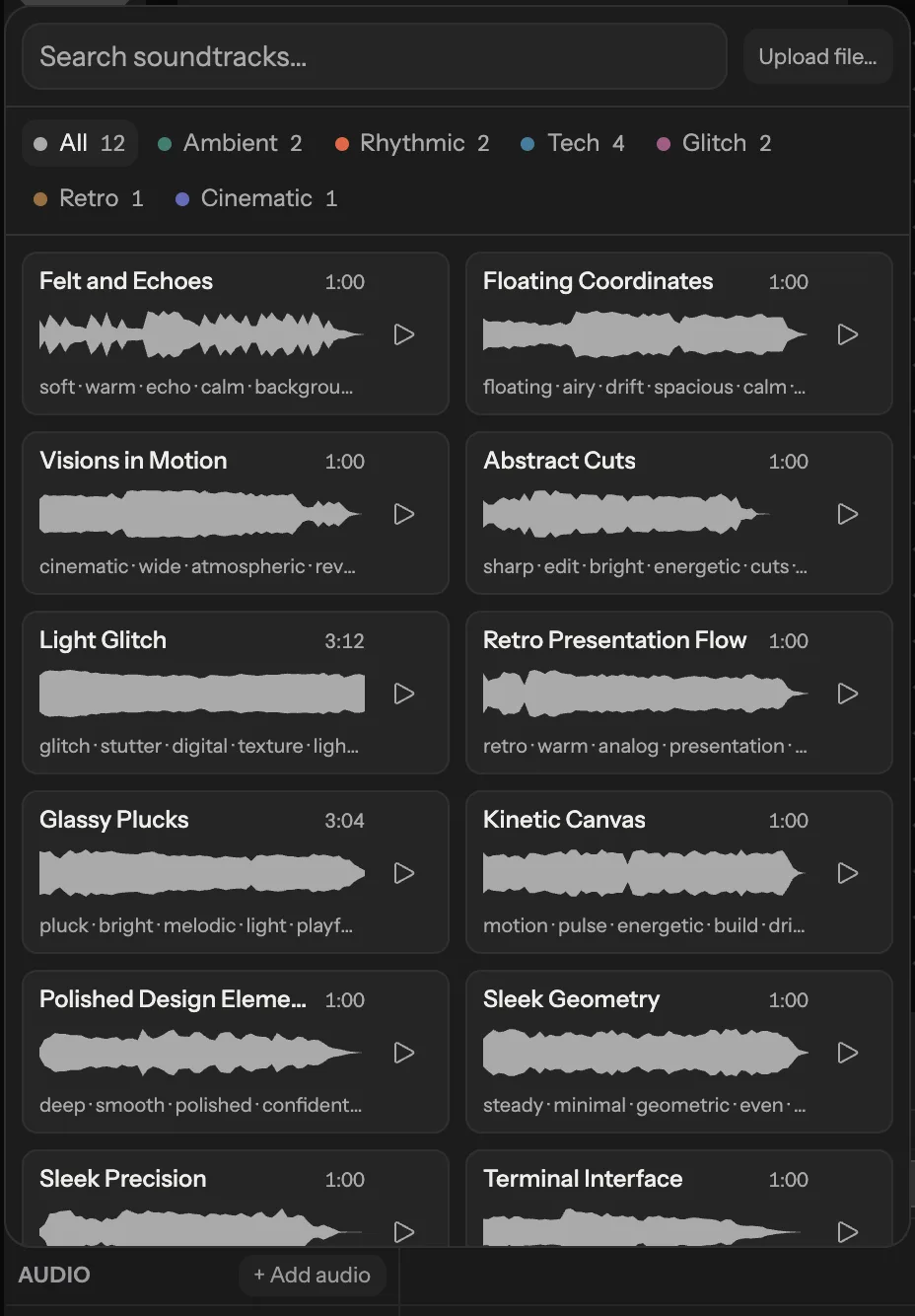
To use your own file, click Upload file… in the same panel, or drop the file onto the timeline or the canvas. Files can be mp3, wav, m4a or ogg, up to 20 MB and 5 minutes each. A project holds up to 8 audio tracks and 10 minutes of audio files in total.
A new track starts at the playhead and is cut at the end of the video. On the timeline:
- Drag the strip to move it, or drag its edges to trim it.
- On a selected track, drag the small circles along its top edge to set the fade in and fade out.
- The speaker button in the track's row mutes and unmutes it.
- Right-click the track and choose Delete track, or press Delete.

Select a track to open its Audio section in the inspector: ▶ Play to hear the track alone, Replace… to swap the file, and Start, s, Length, s, Trim in, s, Volume, Fade in, s and Fade out, s. Loop to fill the strip repeats the file to the end of the strip.
If a track's file is missing, its strip turns red and shows file not found next to the name. Click Replace… after it to choose the file again.
Ducking
Ducking lowers a track while other sounds play, so music does not cover the motion sounds. Select the track and tick Enabled in the Ducking section. Amount, dB sets how much quieter it gets (−12 to start). Down, s and Up, s set how fast it dips and recovers. Under Duck under, choose what triggers it: Animator sounds, Other audio tracks or Video sound.
Sound from a video
A video's own sound is off until you turn it on. Select the video and tick Sound in its inspector section. A Volume field appears, with the note mixed into export. A video background has the same Sound option in the Canvas section. If the file has no sound, the option is greyed out with the tooltip This video has no sound.
While its sound is on, the video's timeline row shows a speaker (tooltip Sound on — click to mute). Clicking it turns the sound off. To turn it back on, use Sound in the inspector.
Sound in the exported file
MP4 files carry everything you hear in the preview: layer sounds, audio tracks and video sound. GIF and PNG have no sound. With project sound off, the video is exported silent. See Export for formats and the warnings you may see.