Galleries
Show a set of your images and videos in a moving layout, pick a type and a preset, and tune its layout, motion and intro.
A gallery is one object that shows a set of your images and videos in a moving layout. Its type decides the layout and the motion: Carousel runs the pictures along a line, Wheel turns them on a ring, Deck piles them up, Path sends them along a curve.
Add a gallery
- Open Gallery in the left rail.
- Click a gallery type.
If nothing is selected, a new gallery appears in the middle of the canvas and is selected right away. If a gallery is selected, the click changes that gallery's type instead: its pictures, its size and the settings of every type stay.
A new gallery is empty. Until you add pictures, it shows Add images or videos in the inspector.
Choose a preset
A number in the corner of a type card shows how many presets the type has. When a type has presets, clicking its card opens a list instead of applying the type right away. The list has Default and the presets. The arrow at the top goes back to the types.
- Click a preset to apply it. With a gallery selected, the preset sets its type, the settings of that type and its intro. Your pictures and the gallery's size stay. With no gallery selected, the preset adds a new gallery.
- Click Default to use the type with its starting settings. If the selected gallery already uses this type, Default resets the type's settings and its intro.
Add and arrange your pictures
Select the gallery. The Gallery section of the inspector starts with Format and the name of the current type, then Assets.
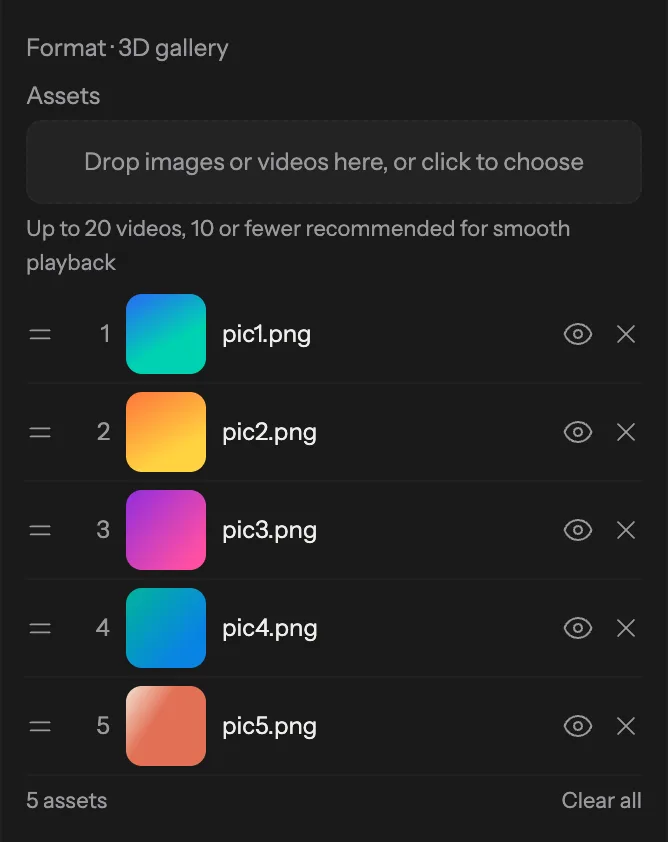
Drop images or videos onto Drop images or videos here, or click to choose, or click it to pick files. New files go to the end of the list. Add them here: a file dropped onto the canvas becomes a separate object, not part of the gallery.
A gallery holds up to 30 assets, up to 20 of them videos. The line Up to 20 videos, 10 or fewer recommended for smooth playback turns into a warning above 10 videos. Files over the limit are skipped with a note, for example 30 assets max.
Each row in the list has the picture's number, a thumbnail and its name:
- Drag a row up or down to change the order. The gallery shows the pictures in this order.
- The eye button hides a picture from the gallery without removing it. Click it again to bring the picture back.
- The cross removes the picture. Clear all under the list removes all of them.
When a type has more places than you have pictures, the pictures repeat in order. Where the loop closes, Swash avoids putting the same picture twice in a row. Types that show one picture at a time, such as Wipe, Flicker and Spin, show each picture once per round. In place of their Count setting you see a line such as Steps: 4 — one per image.
Adjust layout and motion
Under Assets is Box, with Width and Height of the gallery. The settings of the current type follow. Each type has its own, so a Carousel shows other settings than a Sphere. Most of them fall into two groups:
- Layout: how many cards there are and how they look, such as Count, Gap, Corner Radius, Offset X and Offset Y, plus settings of that type only, such as Axis on a Carousel or Perspective on a 3D gallery or a Sphere.
- Motion: how the cards move. Many types group these under Timing: Duration of one move, Delay between moves, Stagger between cards, Easing, and Cycles. On some types, such as 3D gallery, Stack and Wipe, Cycles set to 0 (shown as
Cycles ∞) loops forever.
Image Trail, and Path with Shape set to Custom, move along a line that you can change. Click Edit on canvas, then choose Draw to draw a new path with a stroke, or Points to move, add and delete pins.
Intro
Most types also have an Intro at the end of the section: how the gallery appears before its main motion starts. Pick one in the Intro list, or None for no intro. Picking an intro resets its settings to the starting values.
An intro is made of named phases, such as Appear and Unroll. Each phase has its own Easing, and phases that move many cards one after another also have Stagger.
Motion starts sets when the gallery's own motion begins:
- After intro: the motion waits for the intro. Motion offset then sets the gap in seconds between the end of the intro and the first move, from -3 to 3. Below zero, the motion starts before the intro ends.
- With intro: the motion runs while the intro plays.
Some intros have more choices, such as From (the side the cards come from), Start (Edge or Center) or Spread (Cascade or Deck). A few intros, such as Build, have no settings.
The gallery on the timeline
A gallery is one object on the timeline, named after its type, for example Gallery · Carousel. Its motion plays inside the object's time.
If the gallery has an intro with phases and at least one visible picture, the gallery's row opens an Intro row with one lane per phase. Lanes show when each phase starts and how long it lasts. Drag the right edge of a lane to change the length of that phase. Hold, the pause on the first big picture in some intros, is set only here, from 0 to 2 seconds. The part of a lane past the end of the object is dimmed.