Export
Render your animation to MP4, GIF or PNG, pick the size and frame rate, and see what the watermark and Pro change.
Swash renders the file in your browser, frame by frame, and hands it to you as a download. Nothing is uploaded to render it. Everything starts in one place: the Export panel.
Open the Export panel
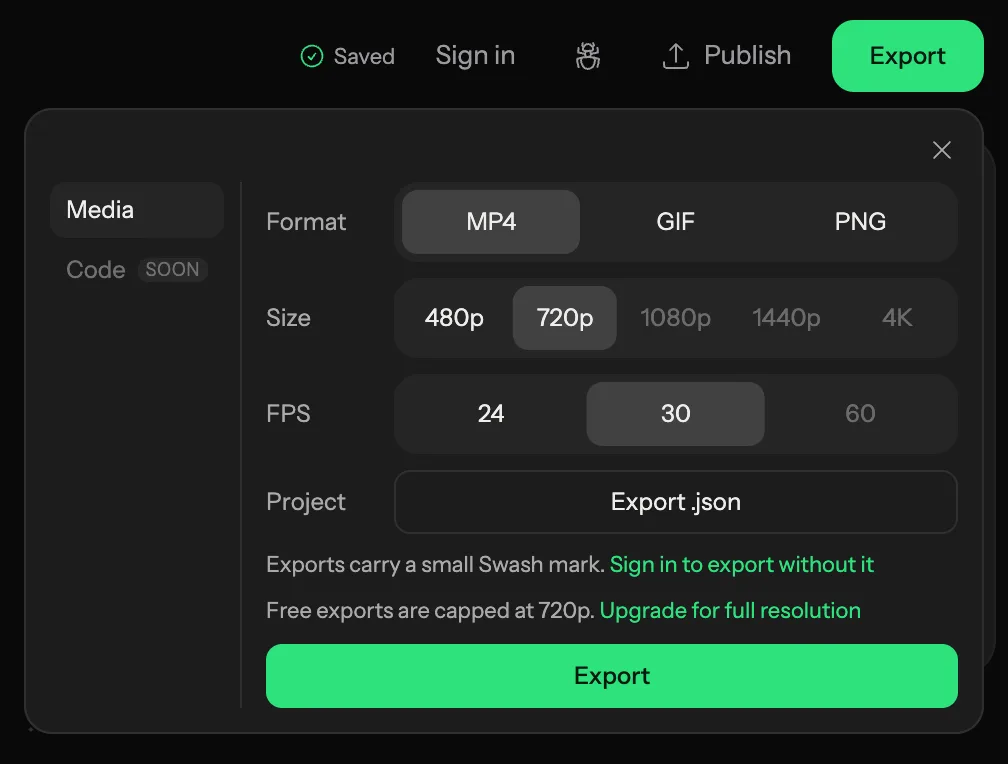
Click Export in the top-right corner of the editor. The panel opens under the button, on the Media tab. Next to it, the Code tab carries a soon badge (tooltip Code export is coming) and cannot be opened yet.
The panel has a row for each choice: Format, Size, FPS and Project. Set them, then click the big Export button at the bottom.
Pick a format
| Format | What you get | Sound |
|---|---|---|
| MP4 | H.264 video | Yes |
| GIF | Looping animation, at most 540 px wide | No |
| PNG | One still frame at the playhead position | No |
Some computers cannot encode MP4 at very large sizes. Then the MP4 button is greyed out, the panel switches to GIF and shows, for example, This browser cannot encode H.264 at 3840×2160 under the format row. Switch to PNG to get the Size row back, pick a smaller size, and MP4 works again.
Every format includes the scene background: there is no export with a transparent background.
There is no quality setting. Swash picks the bitrate from the frame size and frame rate.
Size and frame rate
Size offers 480p, 720p, 1080p, 1440p and 4K. The number is the shorter side of the frame, so 1080p is 1920×1080 on a 16:9 artboard and 1080×1920 on a 9:16 one. The proportions always come from the artboard's format.
Sizes larger than the canvas are rendered again at that size, so text and shapes stay sharp instead of being stretched. On very wide formats the longer side stops at 4096 px, and the whole frame shrinks to fit, keeping its proportions.
FPS for MP4 is 24, 30 or 60 (30 by default). GIF has its own choices: 10, 15 or 20 (15 by default). GIF has no size choice: the row shows 540 px. PNG is a single frame, so it has no FPS row.
Without Pro, exports stop at 720p and 30 fps. The higher options are greyed out with the tooltip Pro plan, and the panel shows Free exports are capped at 720p. with an Upgrade for full resolution link. Pro exports up to 4K and 60 fps.
Sound in the file
MP4 carries the sound you hear in the preview. If the project's sound is turned off, the file is silent. GIF and PNG never have sound. See Sound for how to add and mix it.
If something goes wrong with the sound, you still get the video, with a note under it:
Exported without sound — audio couldn't be encoded.The browser could not encode the audio.Exported without <track name> — file not foundOne music track's file was missing; the rest of the sound is in the file.
The watermark and Pro
Free exports can carry a small mark in the bottom-right corner: Made with and the Swash logo.
- Not signed in. Every MP4 and GIF has the mark. The panel says
Exports carry a small Swash mark.with a Sign in to export without it link. - Free account. You get a number of exports without the mark each month. The panel counts them down, for example
2 exports without watermark left this month, followed by the monthly limit. When they run out, it readsWatermark-free exports used up this monthwith the date the count resets (the 1st of next month) and an Upgrade to remove it link. - Pro. No mark, ever.
Only a finished file without the mark uses up one of your monthly exports. A cancelled or failed export does not.
The upgrade links open the plans dialog, which compares Free and Pro and starts a 3-day free trial.
While the file renders
After you click Export, the panel first shows Preparing assets… while fonts, cutouts and media files finish loading. Then a progress bar appears with a counter. Cancel stops the export at either step.
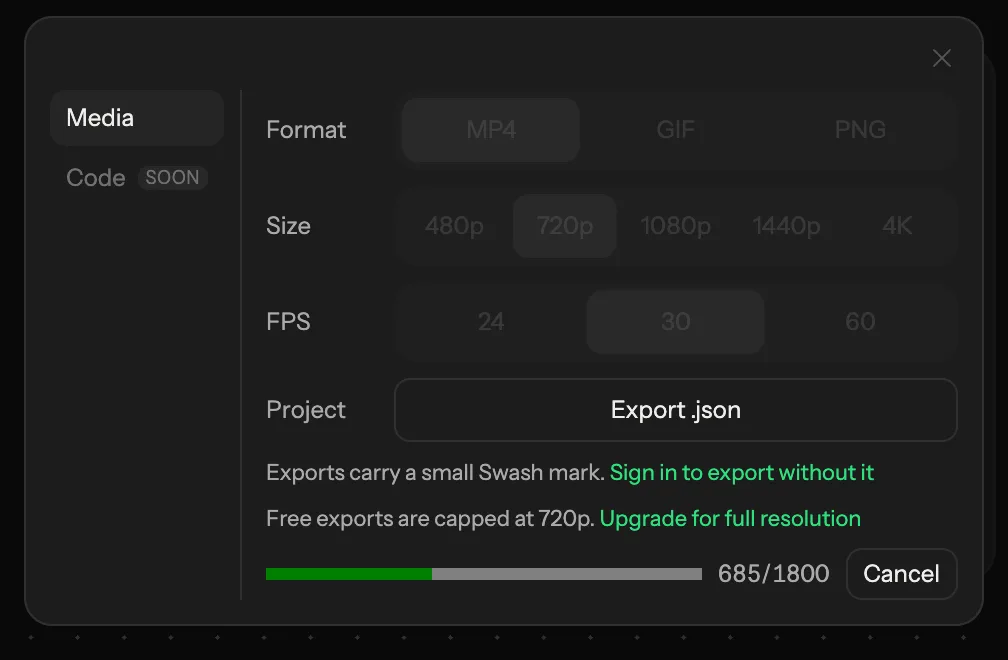
Once the progress bar appears, the panel stays open: the close button is greyed out, and clicking outside or pressing Esc does nothing. Closing the panel while it still shows Preparing assets… cancels the export.
When the file is ready, the panel shows a preview (a player for video, the image for GIF and PNG) and a Download button.
If a font or image did not load in time, the file is still made, with a note such as Exported without 1 font — it didn't load in time.
Several artboards, project files and Community
When the board has more than one artboard, the panel lists them under Artboards. Tick several, or All, and they download as one .zip. See Export several artboards.
The Project row has Export .json. It saves the project itself, not a render, with every artboard on the board. To open it again, use Import .json on the Files page, or drop the file there.
To share the animation as a page instead of a file, use Publish next to Export. It sends the whole board to Community and needs an account and Pro. A published work's page has a Copy link button. See Publish the whole board.