Artboards and formats
Put up to 24 animations on one board, make linked versions of a design in other formats, and export or publish them together.
Every project is a board of artboards. A new project has one artboard, called Main. You can add up to 24 artboards side by side, and you can turn any artboard into a family: the original plus linked versions in other formats, such as a 9:16 made from your 16:9.
Move around the board
The active artboard plays live in a green frame. The others show their latest frame; click one to switch to it.
- Shift + 1 shows the whole board.
- Shift + 2 zooms to the active artboard.
If an artboard looks faded, with a small dot in its top-right corner, its frame is out of date. Click the artboard: the frame is redrawn when it becomes active.
Add and arrange artboards
The round + button next to the active artboard (tooltip Add artboard) adds a new artboard in the same format, with the same starting content as a new project. New artboards are named Artboard 2, Artboard 3 and so on. The button hides when another artboard is in the way; zoom in, or use Duplicate in the artboard menu. When the board has 24 artboards, the button is greyed out, Add format… is greyed out too, and Duplicate reads Duplicate (limit 24).
Each artboard has a label above it with its name and format:
- Drag the label to move the artboard on the board.
- Double-click the label to rename the artboard.
- Right-click the label to open the artboard menu.
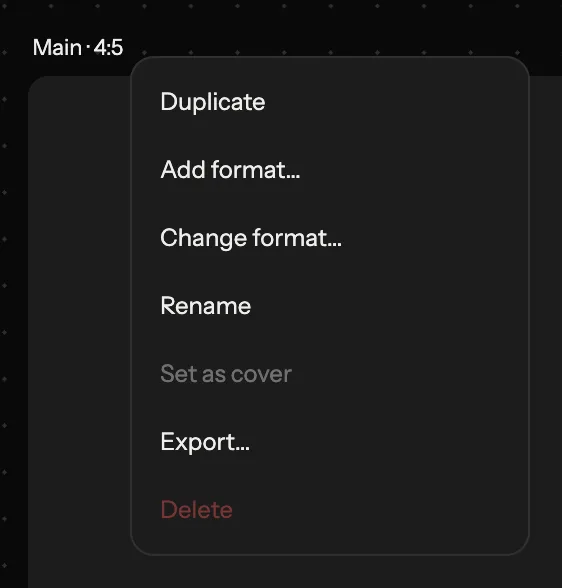
The artboard menu has Duplicate, Add format…, Change format…, Rename, Set as cover, Export… and Delete. On a version it also has Detach from Main and Reset all overrides.
Change format… gives the artboard another aspect ratio. There are 13, grouped as Landscape (21:9 to 5:4), Square (1:1) and Portrait (4:5 to 9:21).
Set as cover makes the artboard the cover, marked Cover next to its label. The project opens on its cover. Only a main artboard can be the cover: on a version the item reads Set as cover (main artboards only) and is greyed out.
You cannot delete the last artboard on the board.
Make a 9:16 version
- Right-click the label of the artboard you want to adapt, for example your 16:9.
- Choose Add format….
- Pick the format, for example 9:16.
The version appears next to the last artboard of its family and becomes active. Its label reads 9:16 · of Main. Swash lays everything out for the new frame by itself: positions follow the new width and height, and sizes scale by the smaller of the two, so objects keep their proportions and stay inside the frame.
A version always belongs to a main artboard. Add format… on a version adds another version of the same main artboard, and Duplicate on a version makes a second version of it, with its own changes.
Edit Main and its versions
Edit the main artboard and its versions follow. Moving an object on Main moves it to the matching place in every version that has not moved it itself.
Change something on a version and only that version changes. From then on, that field no longer follows Main. In the inspector, a small dot appears next to the field; its tooltip reads Overridden in 9:16 — click to reset to Main. Click the dot to take that field back to Main.
To reset more at once:
- Right-click an object on a version and choose Reset to Main to reset all its fields. The item appears only when the object has changes of its own.
- Choose Reset all overrides in the artboard menu to take the whole version back to Main. It is greyed out when there is nothing to reset.
Detach from Main turns a version into a standalone artboard. It keeps how it looks and stops following Main.
What a version can change on its own
A version can have its own value for any setting of an object, including:
- position, size, scale, rotation and flip
- opacity and blend mode
- the text, font, font size, letter spacing, line height and alignment
- colour and fill, corner radius
- animators, effects, deform, 3D, text on a path, repeater, movement, word cycler and marquee
It can also have its own scene settings: background, duration and loop, the camera, full-frame shaders, the project sound switch and volume, and music tracks.
Some changes are always shared by the whole family:
- Adding or deleting an object on a version adds or deletes it on Main and on every other version.
- The order of objects is shared, too.
- Group and Ungroup work only on the main artboard. On a version they read Group (main artboard only) and Ungroup (main artboard only).
The format is the one thing every version keeps for itself.
To give a version its own animation, change its animators in the inspector. See Presets and animators.
Export several artboards
- Click Export in the top bar.
- When the board has more than one artboard, the panel lists them under Artboards. The active one is ticked. Tick the ones you want, or tick All.
- Pick the Format and Size, and export.
Several artboards download as one .zip, with a file for each artboard, named after the project, the artboard and its format. Format, Size and FPS are shared by all files; the frame of each file follows its own artboard's aspect ratio.
Without Pro, the watermark rules apply to each file. Before you start, the panel tells you how many files will have a watermark, for example 2 of 3 files will have a watermark.
Export… in the artboard menu opens the same panel with that artboard ticked.
Publish the whole board
Publish in the top bar sends the work to Community. Publishing needs an account and Pro.
The whole board goes with the work: every artboard, every format and every version. The publish page says so, for example All 3 artboards will be published. To share only some artboards, duplicate the project and remove the rest.
In Community, the work's card shows how many formats it has, for example 3 formats, when it has at least two. If the author allows remixing, Remix opens the whole board.