Images and video
Add pictures and video clips, resize and replace them, remove a background, crop and trim a clip, and use an image or video as the background.
Pictures and video clips are objects like text and shapes. You place them on the artboard, animate them with presets and process them with shaders. A video can also have its own sound.
Add images and videos
Use the picture button (tooltip Add image) or the film strip (tooltip Add video) in the top bar. The new object lands in the middle of the frame and is selected. You can also drag files from your computer onto the board. Each file lands where you drop it, and several files at once are placed in a small cascade, in the order of the files. An audio file dropped on the board becomes an audio track instead (see Sound).
What you can add:
- Images. Any image your browser can open, including PNG, JPEG, WebP and SVG. A large picture comes in with its longest side at 600 pixels, and you can make it bigger afterwards.
- Videos. MP4 or WebM, up to 30 seconds long and up to 100 MB.
If a file is refused, the reason appears next to the toolbar buttons, for example Video must be ≤30s, Video must be ≤100 MB or Unsupported format. For files dropped on the board, the note appears on the board: with the file name for one file, or as a count when several are skipped.
Where your files are kept
Every image and video you add is saved in this browser together with the project. When you are signed in, Swash also uploads the file to your account in the background, so the project opens with it on another device. As a guest, the files stay in this browser only. See Your first animation for how guest work moves into an account.
Size, shape and motion
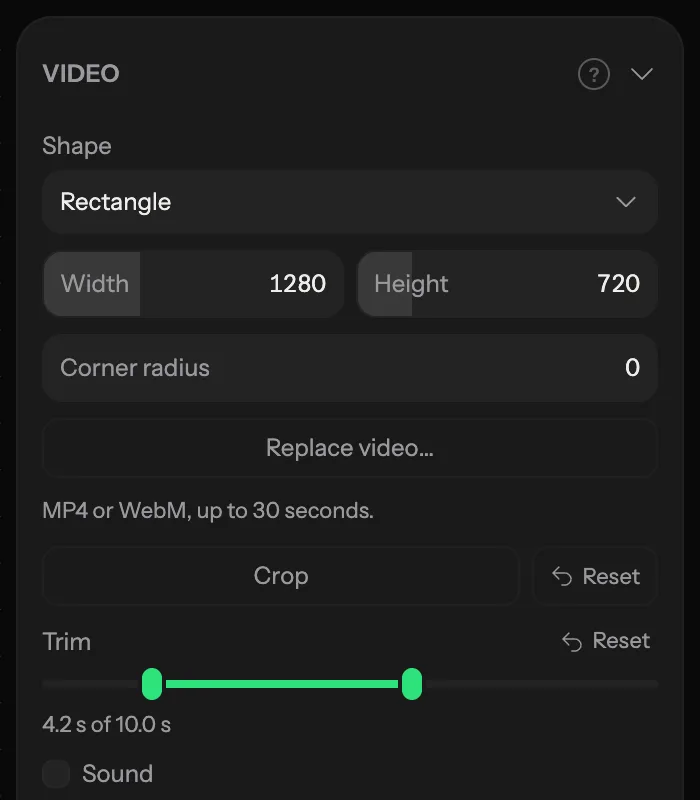
Select an image and its settings appear in the Image section of the inspector. A video has the same controls in the Video section.
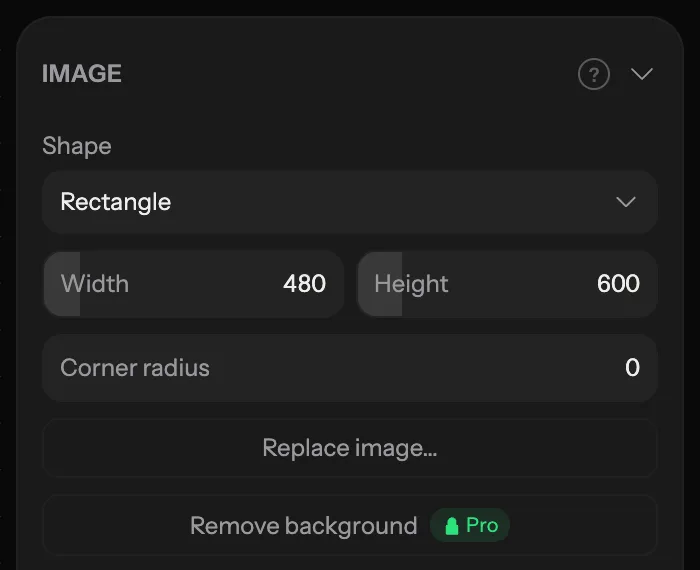
- Shape cuts the picture to a shape, such as Circle, Hexagon or Star. Corner radius rounds the corners, and Points sets the number of points of a star.
- Width and Height set the size of the box. The picture always fills the box without stretching. If the box has other proportions than the file, the picture is cut evenly from both sides.
- Replace image… or Replace video… swaps the file and keeps the size, position and animation. Replacing a video resets its crop and trim.
Below these are the anchor, rotation, flip, opacity and blend mode, the same as for other objects. Outline, Background blur and Shadow are under Decoration, see Effects and shaders.
To animate a picture or a clip, select it and click a card in the Presets library. The library shows only the presets that work on the selected kind of object. See Presets and animators.
Remove the background
Needs Pro.
- Select an image.
- Click Remove background in the Image section. Without Pro, the button has a Pro chip and opens the upgrade dialog.
- Wait while the button reads Removing background…. Dots shimmer over the picture on the board.
Swash does not change the original. It adds a copy with the background removed, right on top of it, and selects the copy. The copy is named after the original with · cutout at the end, for example Image · cutout. It has the same size, position and animators, so the two layers move together. Keep the original under it for depth, hide it, or delete it. One undo removes the copy.
The button does not appear for SVG images. If something goes wrong, a message appears under the button, for example This image is too large to process.
Crop and trim a video
Crop in the Video section opens the crop frame on the board. The whole clip shows, with the part outside the frame dimmed.
- Drag a handle to change the frame.
- Drag inside the frame to move the picture under it.
- Press Esc or Enter, or click outside, to finish.
The crop is applied while you drag. Nothing is cut from the file, so you can widen the frame again later. Reset next to Crop brings back the whole picture.
Trim picks the part of the clip that plays. Drag the two handles on the bar. The coloured part is what stays, and the line under the bar shows its length, for example 4.2 s of 12.0 s. You can also click a handle and use ← and →, with Shift for bigger steps. Reset shows up once the clip is trimmed and brings back the full length.
When a video plays
A video plays during its strip on the timeline, like any other layer. Drag the strip to start the video later, or drag its ends to change when it appears and disappears. The clip always starts from its own beginning (or from the trim start) when its strip starts, wherever you move it. If the strip is longer than the clip, the clip starts over and repeats until the strip ends. There is no speed setting.
A video's own sound is off until you turn it on with Sound in the Video section. See Sound from a video.
Use an image or video as the background
- Click an empty spot on the board, so the inspector shows Canvas.
- Under Background, choose Image or Video.
- Click Upload image… (jpeg/png/webp/svg) or Upload video… (mp4/webm) and pick a file.
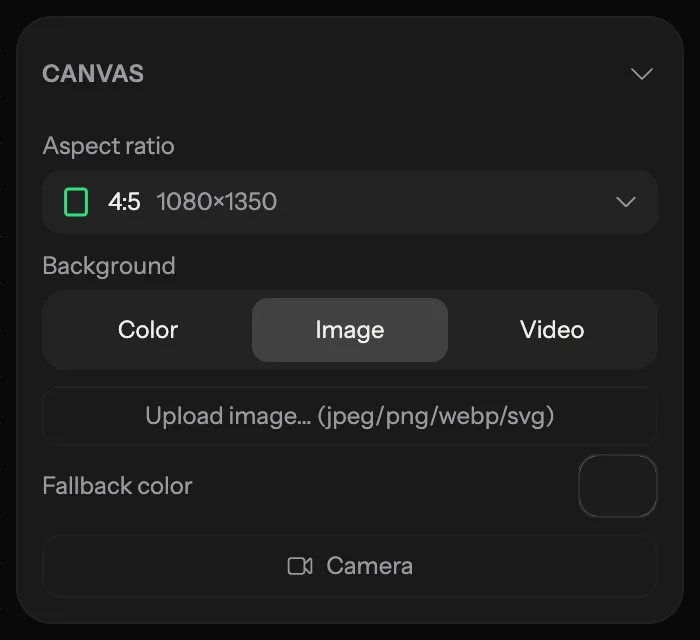
The background fills the whole frame and is cut evenly at the edges if its proportions differ. Fallback color is shown while the file is loading. A video background plays from the start of the scene and has its own Trim and Sound. Replace… swaps the clip, and Remove turns the background back into a colour.
The same limits apply as for video objects: up to 30 seconds and 100 MB. For animated patterns as a background, see Background patterns.